
Running more than one office? Set each location up on its own — its own people, its own carriers, kept separate. Scroll through the guide below, or open the original in Scribe.
Step-by-step guide
Does your agency run more than one office? Each location may have its own carrier codes and its own logins. In Fetch, you don't merge them into one account. You set up each office on its own. Each office keeps its own people and its own carriers, separate from the others.
Here's the one thing to know first. The carrier details you enter in Fetch connect that office to the carrier. You enter them once for each office. Fetch then uses them to pull your real, ranked quotes. Your details stay secure.
1. Create an office for each location
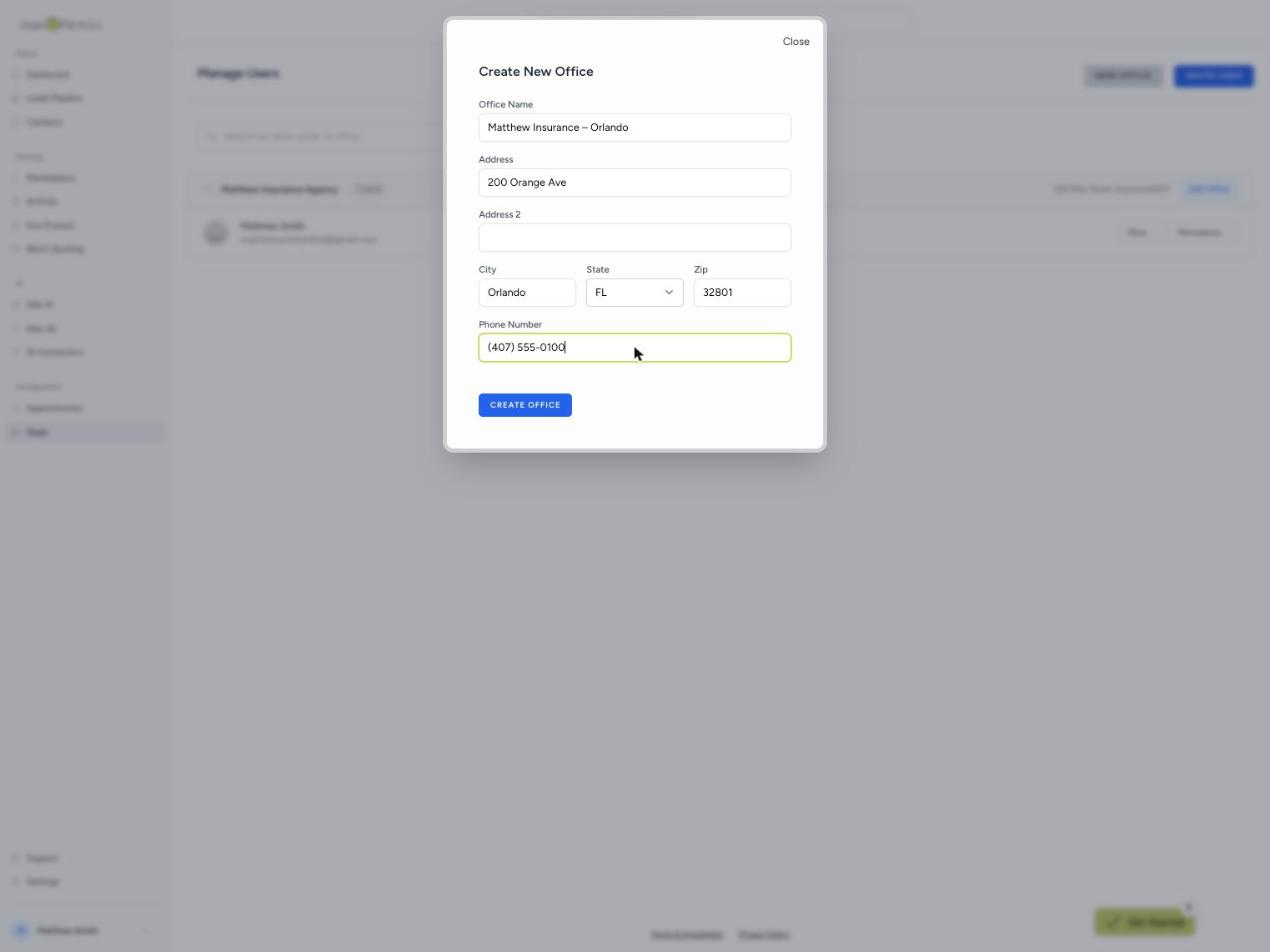
In the left menu, under Configuration, click Team. Click New Office. Enter the office name, address, and phone. Click Create Office. Do this once for each location.
2. Each office is its own block
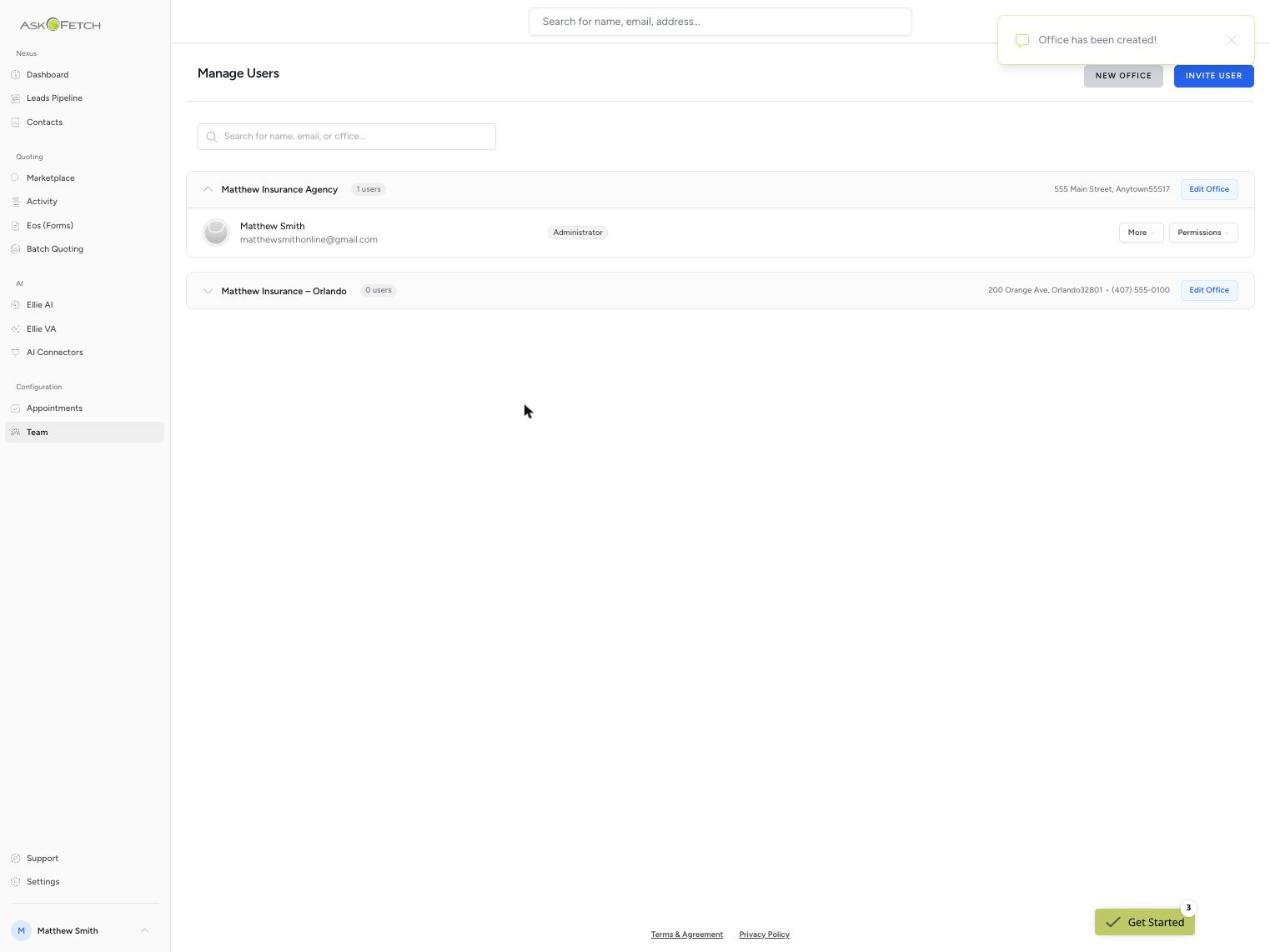
Each office now shows on its own. It has its own people and its own carriers. Someone you add to one office sees only that office's carriers. Offices never mix.
3. Add people to an office
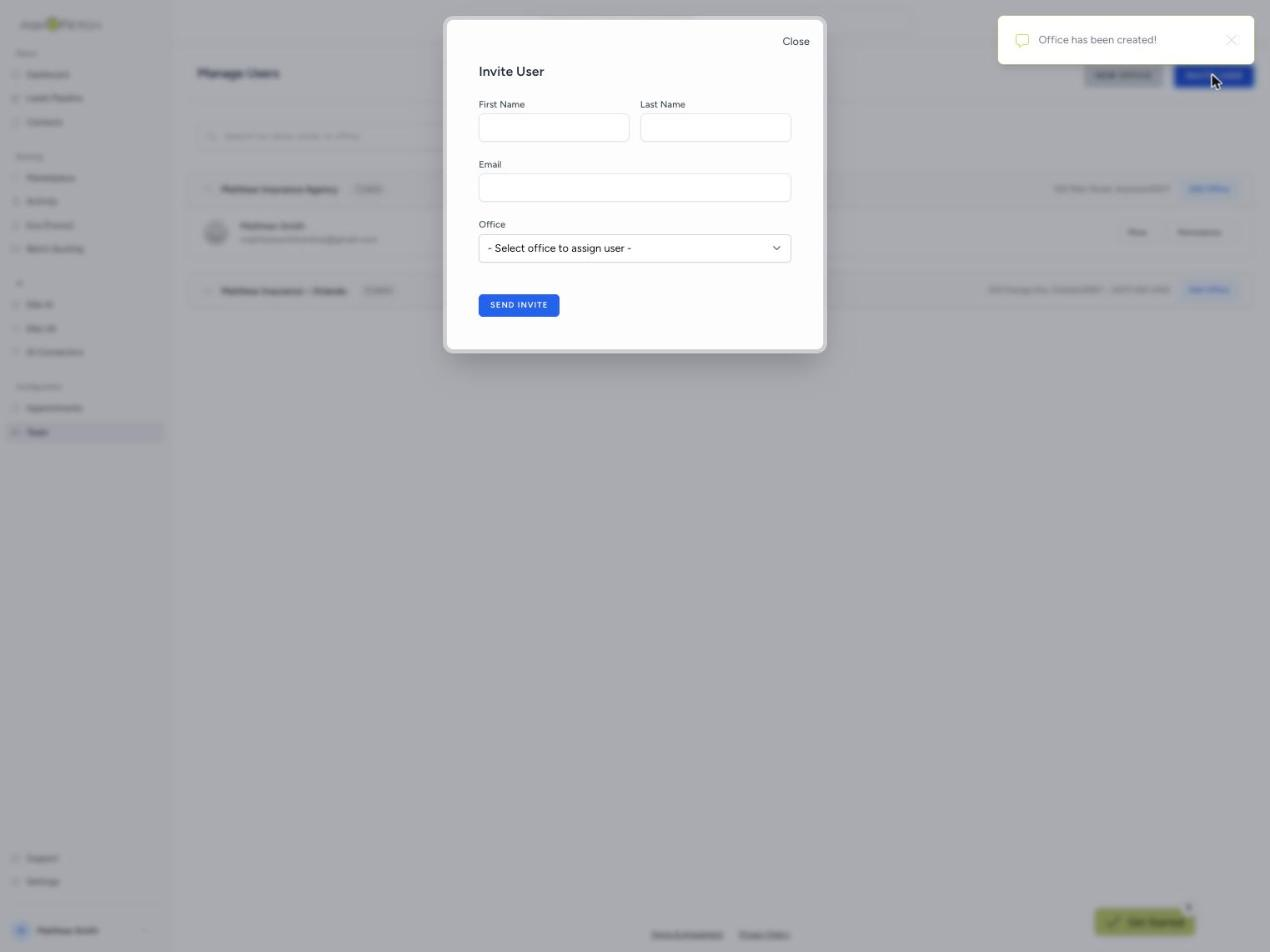
Click Invite User, at the top right. Enter the person's first name, last name, and email. Choose the office to add them to. Click Send Invite.
4. Make one person per office a Team Manager
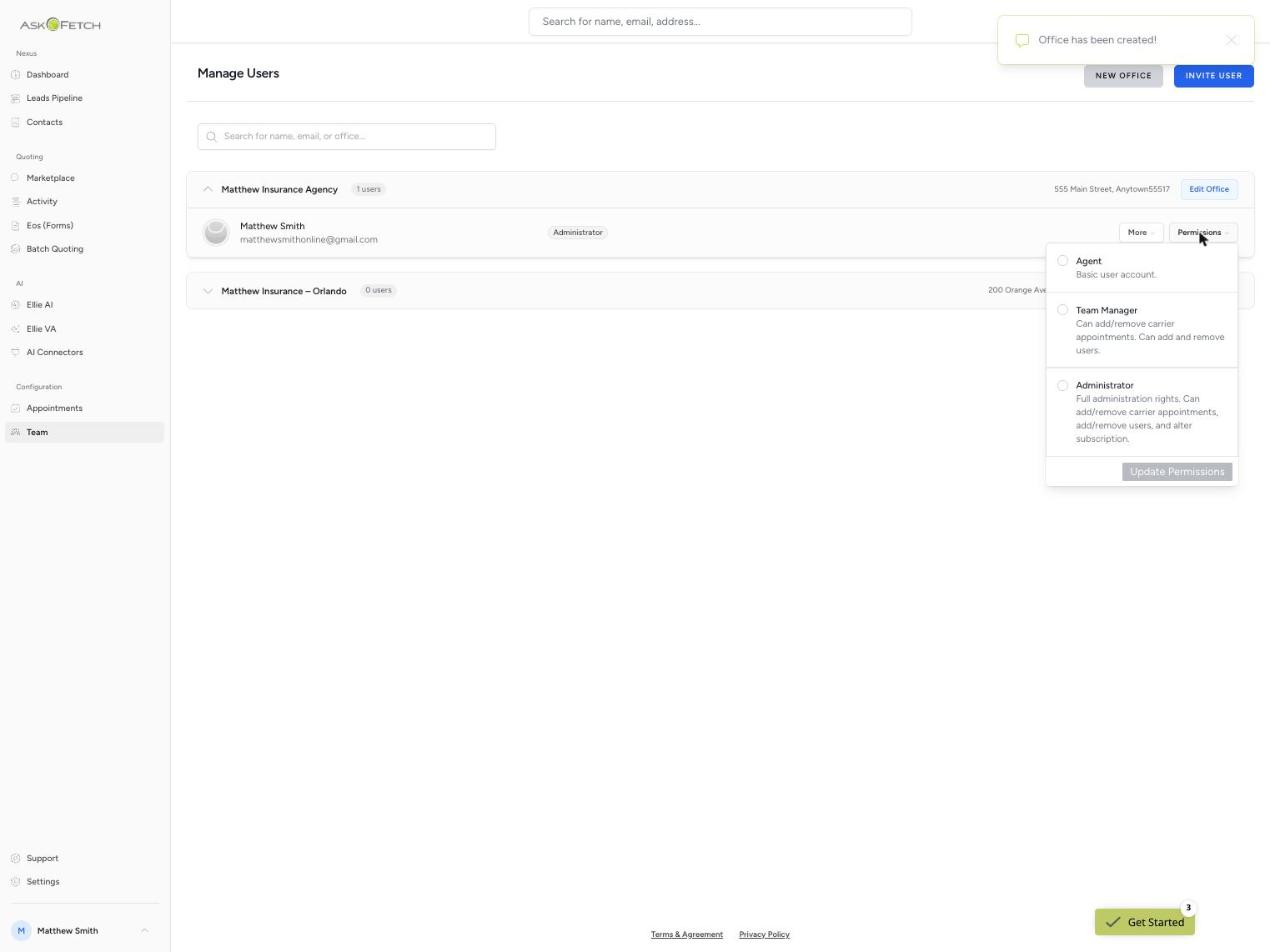
Each office needs one person who can enter its carrier logins. Find that person in the list. Click Permissions next to their name. Choose Team Manager. A Team Manager can add and update that office's carrier logins. You, the owner, stay Administrator over every office. Pick the person who keeps that office's carrier passwords.
5. Enter each office's carrier logins
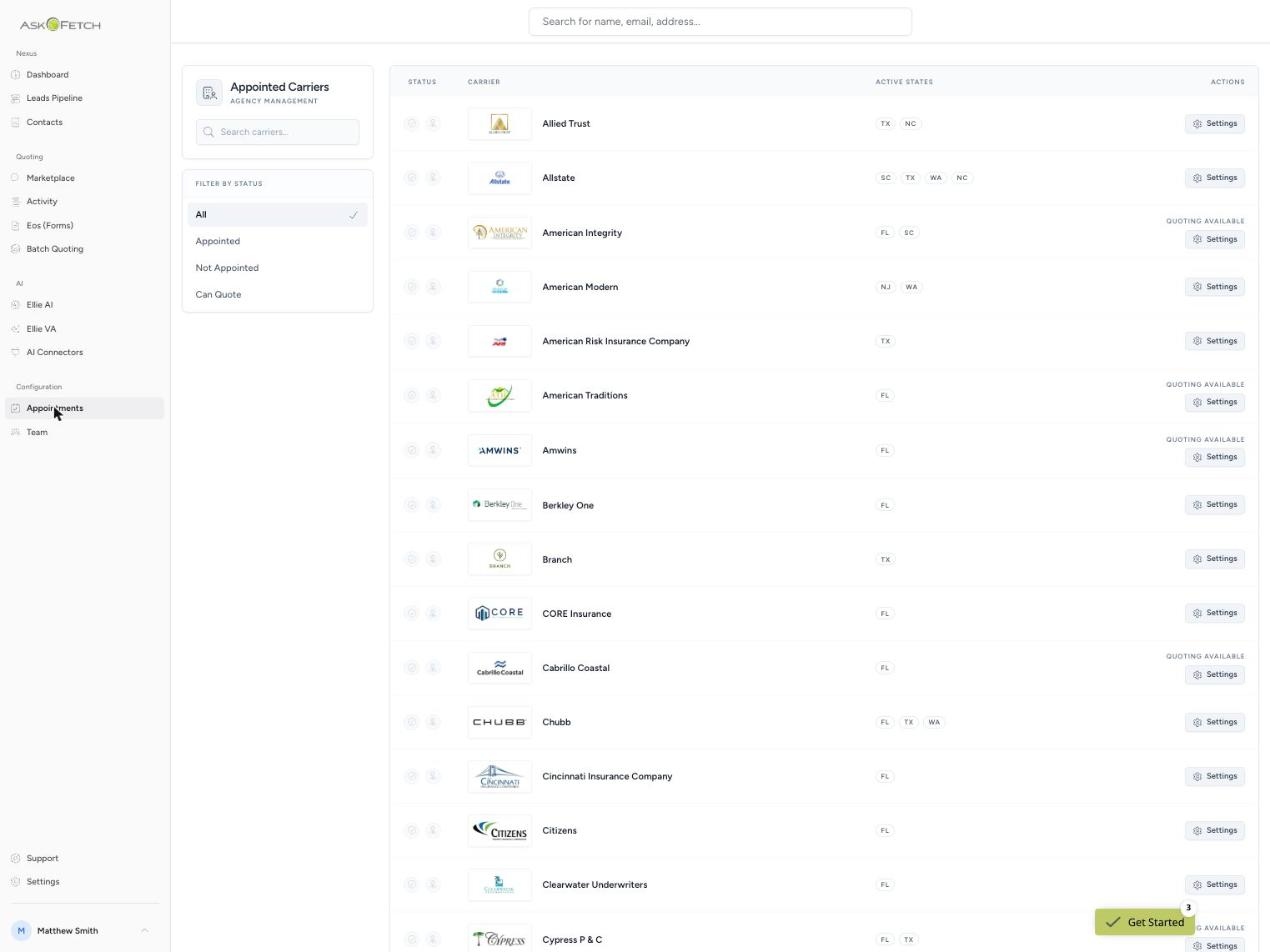
In the left menu, click Appointments. Find a carrier. Click the Settings icon on its row. Enter that office's Producer Code, Username, and Password. Enter only the fields that carrier needs. Click Save. You do this once per office.
You're set up — now connect your carriers
Each carrier needs its Producer Code, Username, and Password, entered once per office. Not sure where to find those? The companion guide shows you where each value comes from, carrier by carrier.