
Turn on Ellie, your email-in quoting assistant, and get her answering underwriting questions for your team. Click through each step below, or open it full screen.
Interactive walkthrough
ASK•FETCH
Setting Up Your Ellie VA
Your email-in quoting assistant • Quick Guide
Ellie VA is your quoting assistant. Set her up once, then just email or forward a risk — a wind-mit, 4-point, dec page, or a client's email — to her private address. Finished quotes come back to your inbox and save into Fetch, with no manual data entry. Setup takes about two minutes.
Part 1 — Create your Ellie VA
1. Open Ellie VA. In the left sidebar under AI, click Ellie VA.
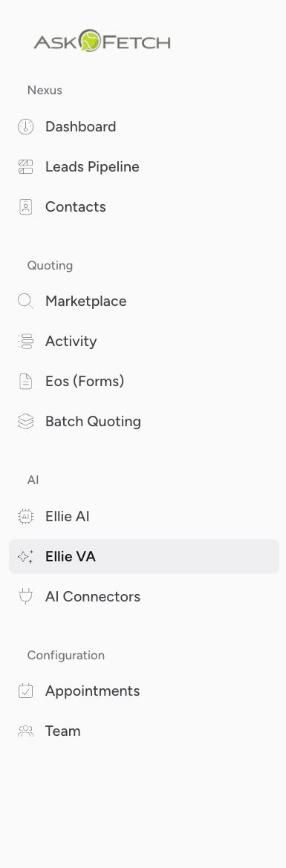
Select the screenshot to open its full-size image.
2. Click Create VA. It's the button at the top right of the Ellie VA page.

Select the screenshot to open its full-size image.
3. Name & team. Give the VA a clear name (e.g. “New home leads · quoting”) and pick your team, then Next. Quotes and contacts it creates belong to that team.
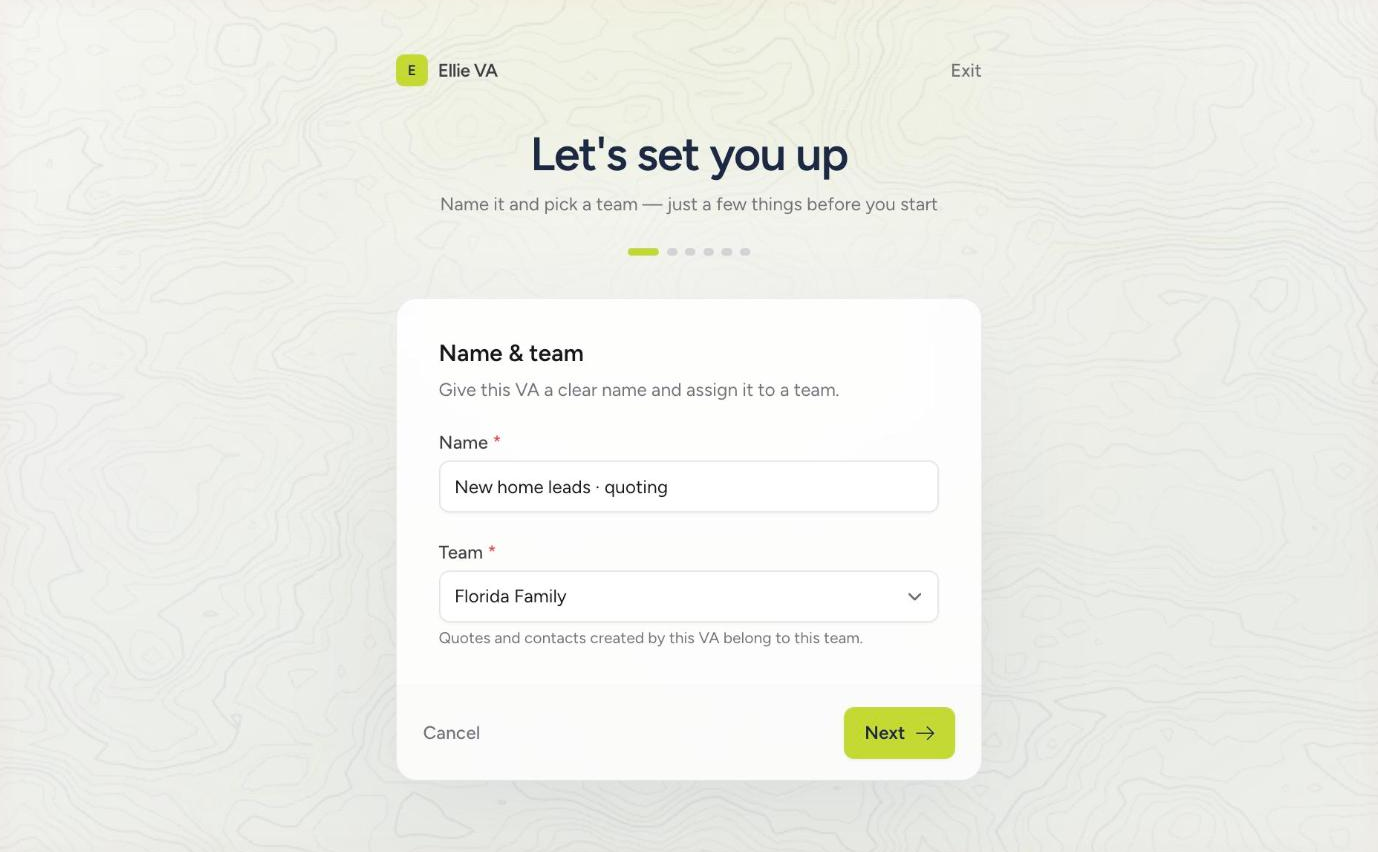
Select the screenshot to open its full-size image.
4. How work arrives. Check Email — this gives Ellie her own private address on @va.askfetch.app. Leave “Allowed sender domains” empty to accept from anywhere. Click Next.
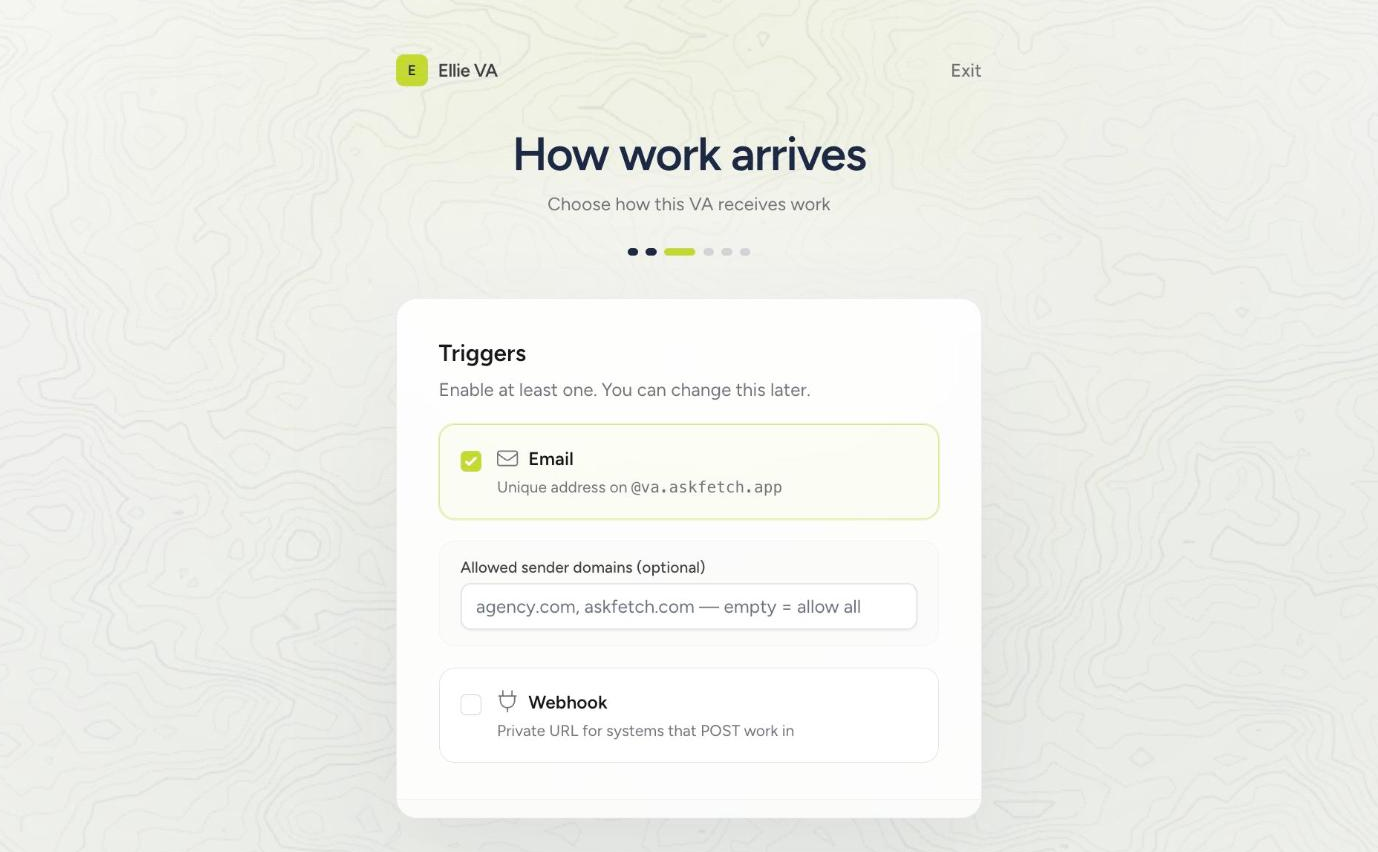
Select the screenshot to open its full-size image.
5. Choose a job. Pick Quoting — it turns an email, form, or spreadsheet into Marketplace quotes. Click Next.
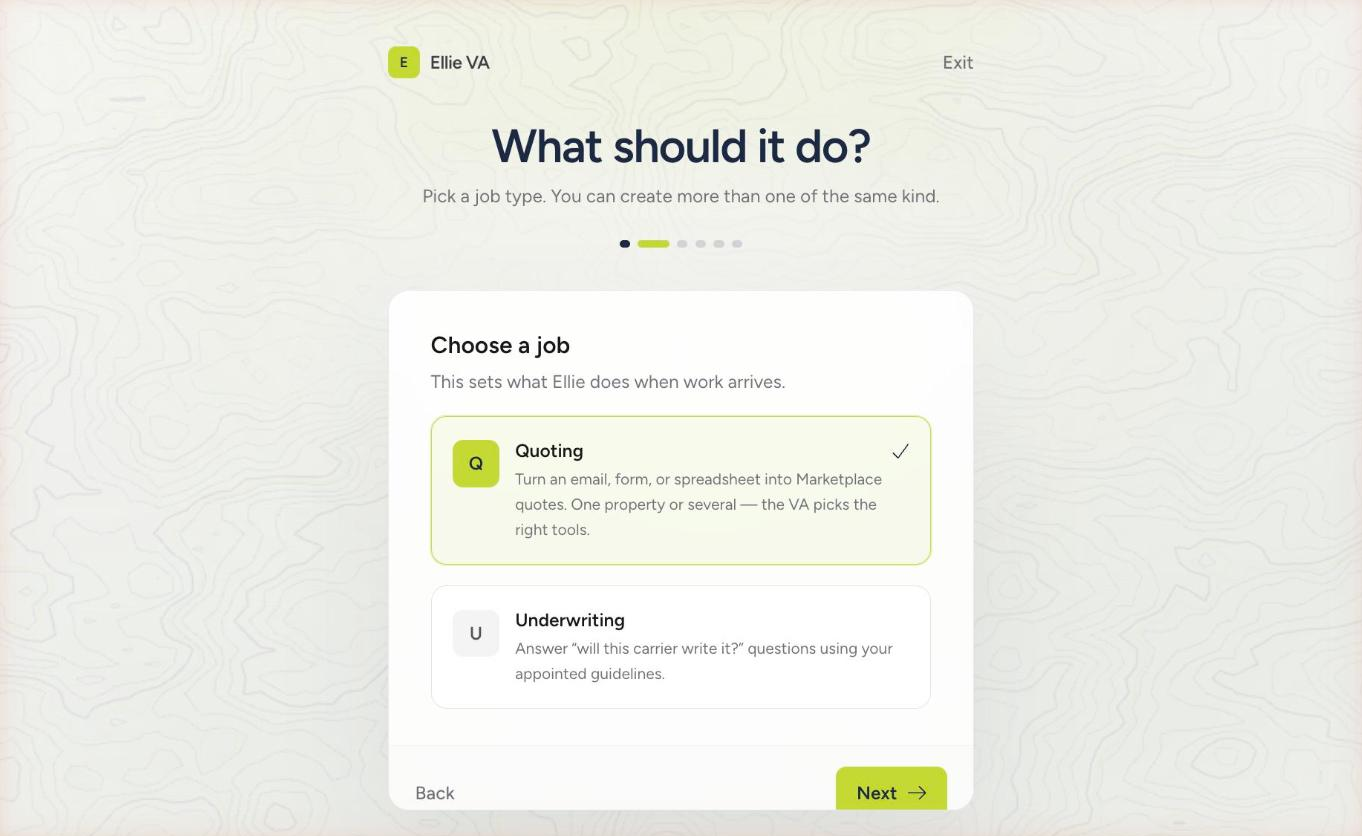
Select the screenshot to open its full-size image.
6. Quote settings. Set Product = Home, choose to save the person as a Contact or Lead, and optionally add Extra instructions in plain English (e.g. “Quote HO-3 only”). Fetch handles Coverage A, year built, and the reply format for you. Click Next.
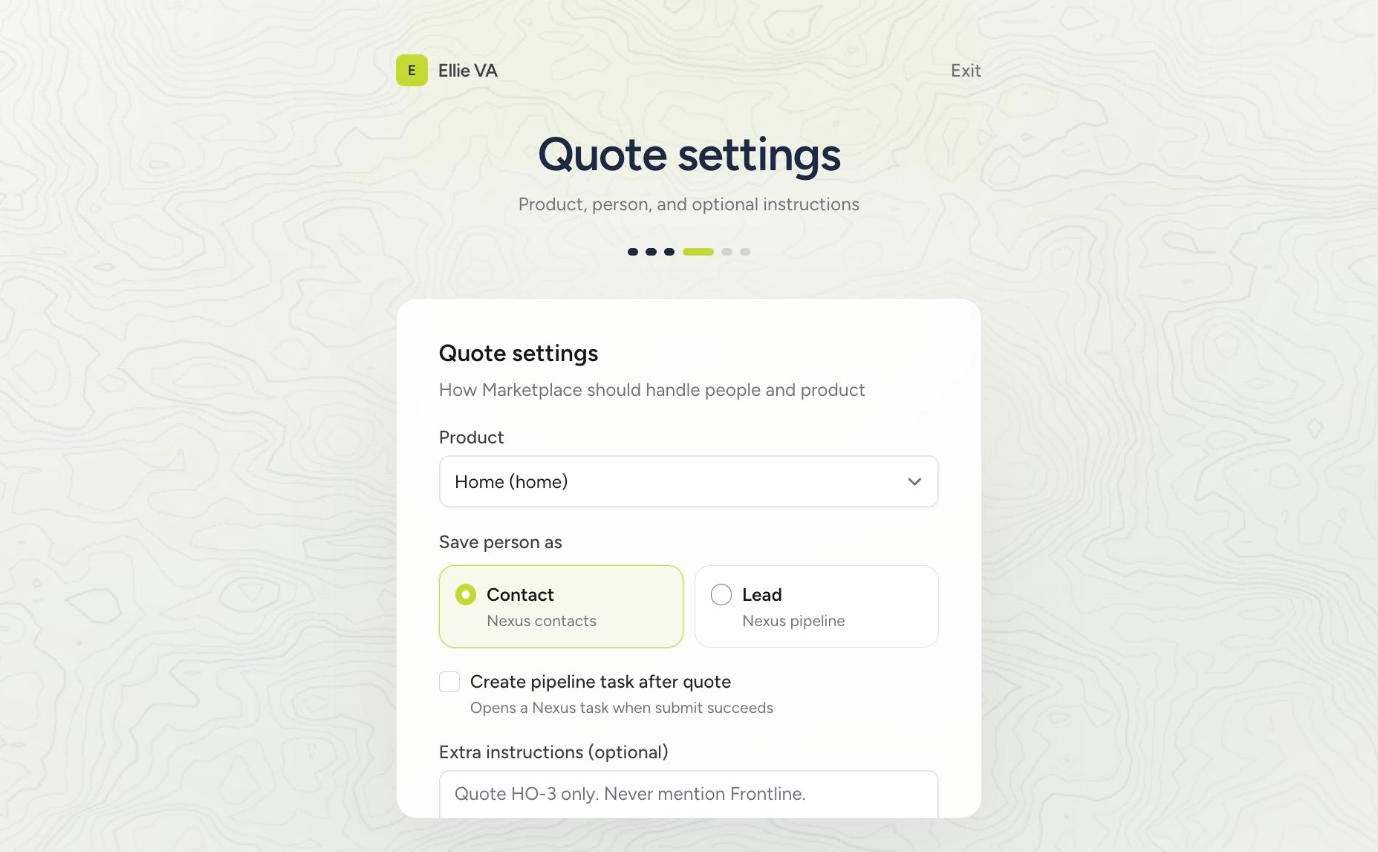
Select the screenshot to open its full-size image.
7. Notify when done. Leave Email notification on so you get a quote email you can reply to, then click Forge VA.
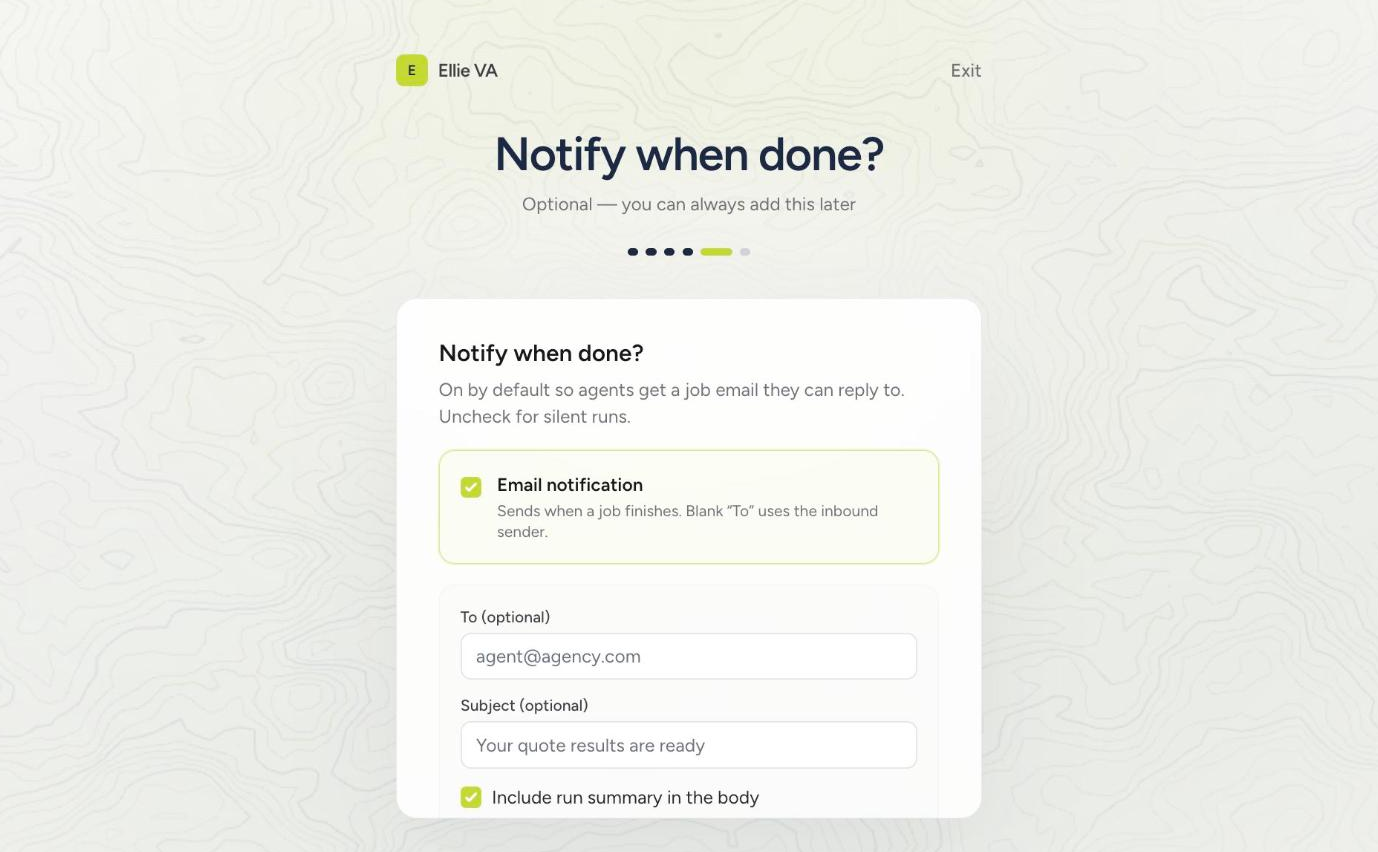
Select the screenshot to open its full-size image.
8. You're live. When you see “Your Ellie VA is live,” click Meet your new VA. Her private email address is now ready.
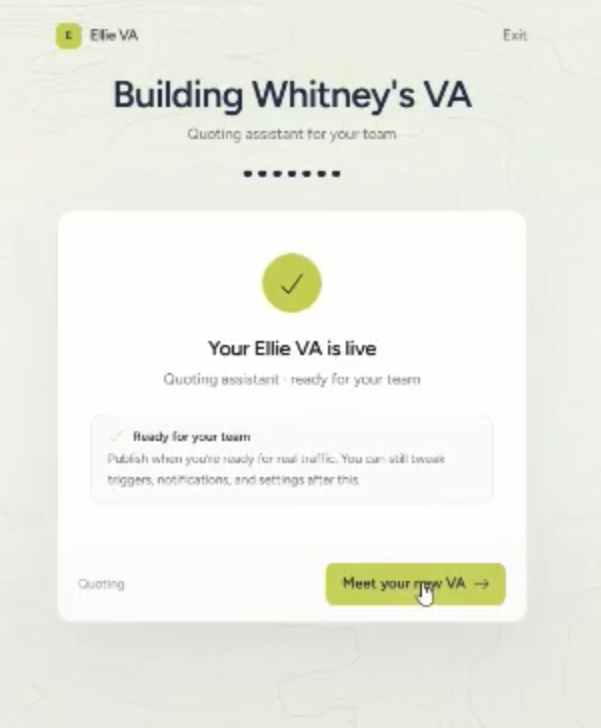
Select the screenshot to open its full-size image.
Get your VA's email address. After Ellie goes live, open her Overview. Under "Starts when → Email" you'll see her private @va.askfetch.app address with a copy button. Copy that exact address — it is the one you paste into Outlook. You don't create one yourself; the app generates it for you.
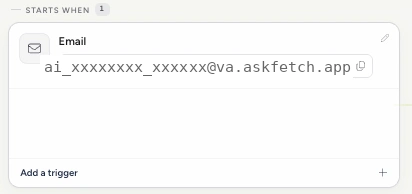
Select the screenshot to open its full-size image.
Part 2 — Send Ellie your first quote
9. Save Ellie as a contact. In your email (Outlook shown), create a new contact and paste Ellie's @va.askfetch.app address into the email field, saved as “Ellie.” Now she's one click away.
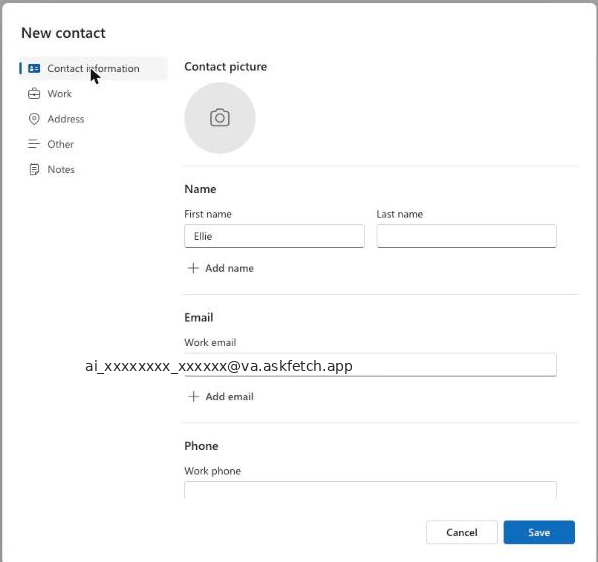
Select the screenshot to open its full-size image.
10. Email or forward a risk to Ellie. Send her the wind-mit, 4-point, dec page, Accord, or the client's email — attached or forwarded — and hit Send. Quotes come back to your inbox and save into Fetch.
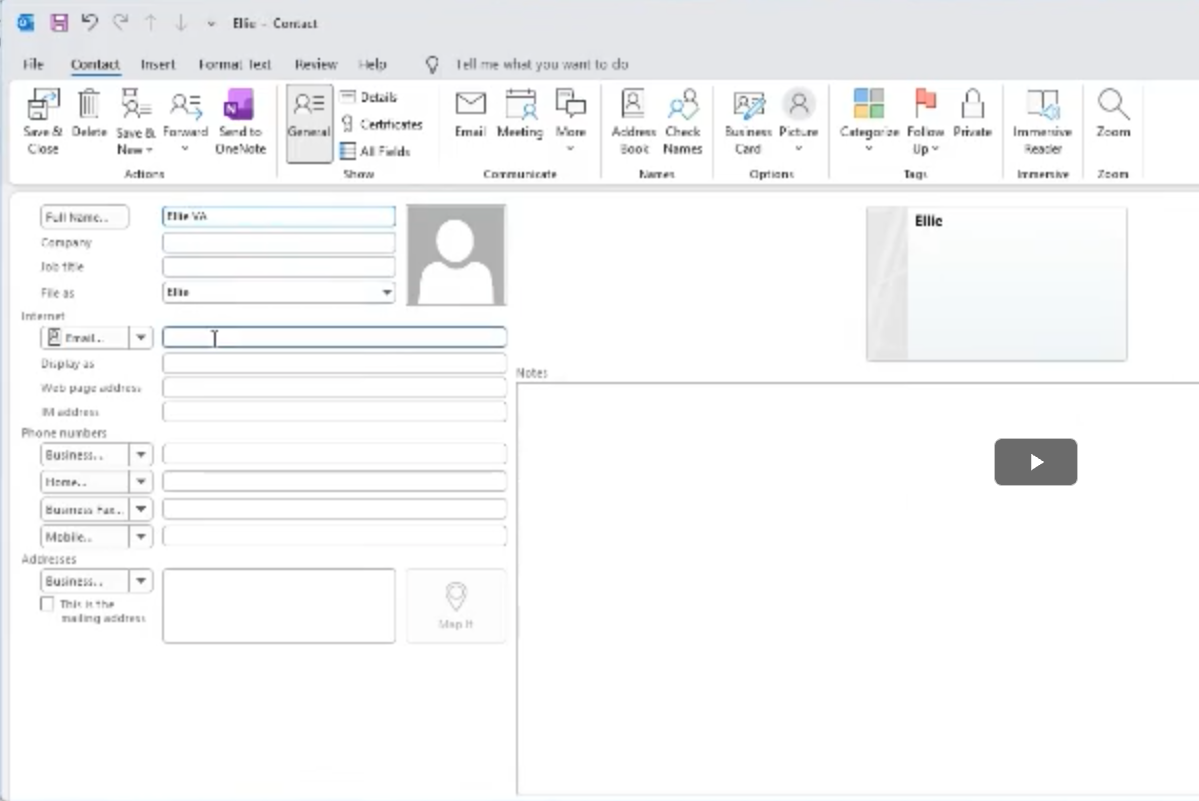
Select the screenshot to open its full-size image.
Fine-tune with Extra instructions (optional). On the Quote step you'll see an "Extra instructions" box. This is where you tell Ellie, in plain English, how to handle a quote — for example which carriers to run, what to assume when a value is missing, how to figure Coverage A, or which fields to skip. Ellie always reads the source document first and only falls back to your instructions when something isn't there, and she flags anything she had to assume. To change them later, open the VA's Settings → Job · Quote, edit the Extra instructions, and click Save job settings.
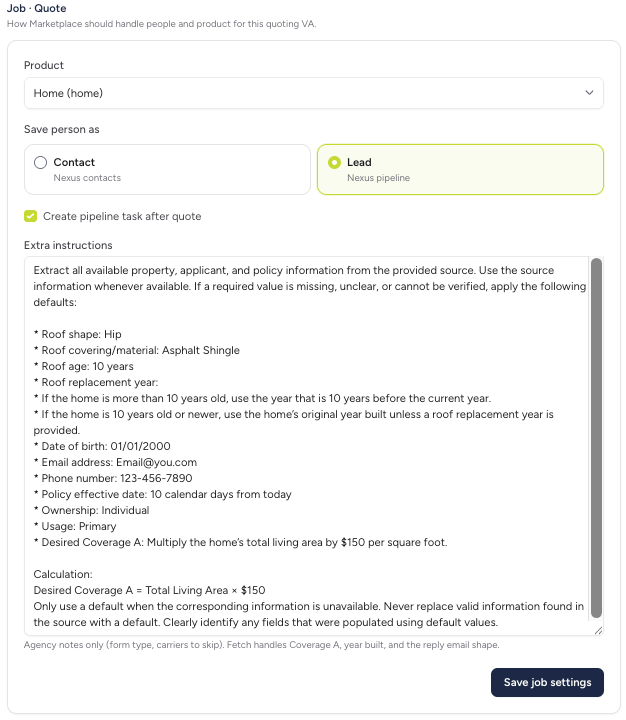
Select the screenshot to open its full-size image.
Good to know: One risk or a whole spreadsheet of addresses both work. If a quote doesn't come back, check that notifications are on (Step 7) and that your sending address is allowed (Step 4). Stuck? Reply to your Ellie email or reach out to your Fetch rep and we'll jump on a quick screen-share.