
Get every carrier you write returning quotes. Enter each carrier's details once, and you're set. Scroll through the guide below, or open the original in Scribe.
Step-by-step guide
Welcome to Fetch. This guide gets every carrier you write returning quotes.
Fetch quotes through your own carrier appointments. For each carrier, you enter your login details for that carrier one time. If a carrier shows "NA" or no quote, it almost always means a credential is missing or in the wrong format. It is not Fetch failing to find a market. The fix is usually one field.
How to enter your credentials in Fetch
In the left menu, under Configuration, click Appointments.
Find your carrier. Use the Search carriers box, or scroll the list.
Click Settings on that carrier's row.
Turn on the Appointed with [Carrier] toggle.
Enter the Producer Code, Username, and Password the carrier needs. Enter only the fields it asks for.
Click Save Changes.
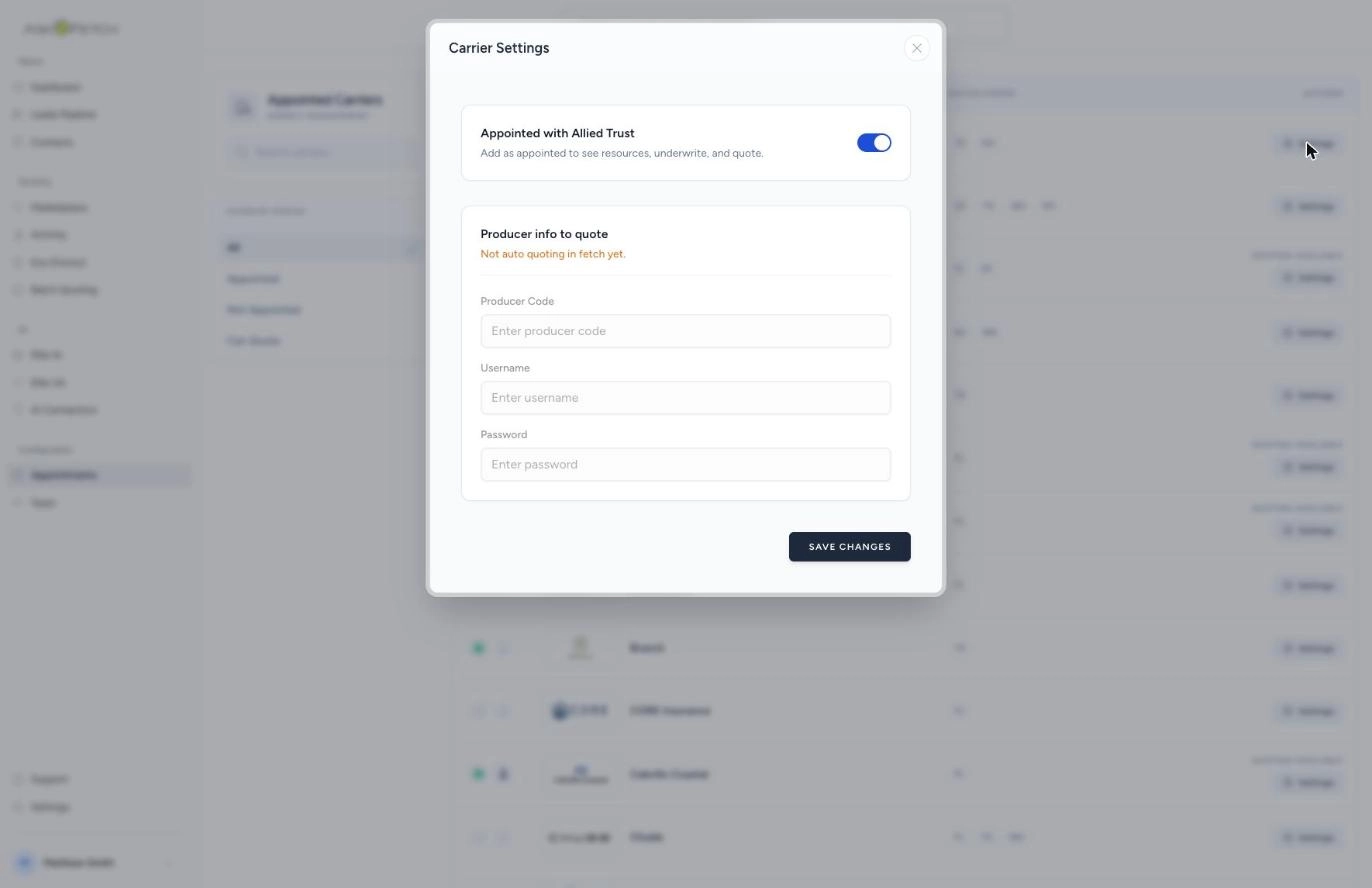
Tip: Not sure where to find a code? In the same window, click How to setup quoting credentials. It opens a step-by-step guide for that exact carrier.
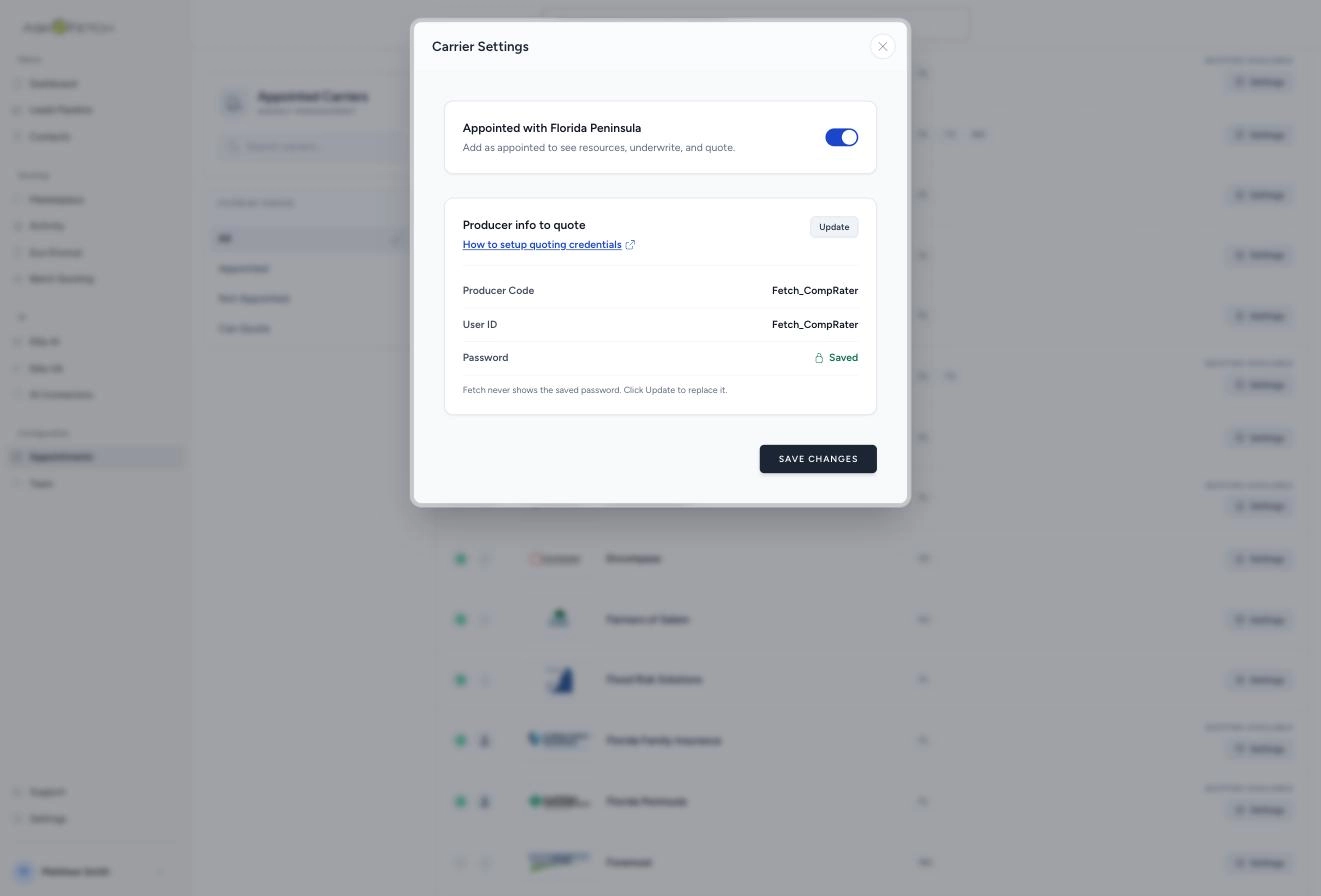
Once a carrier is saved, it looks like this. Fetch stores the password and never shows it again.
Check that it worked
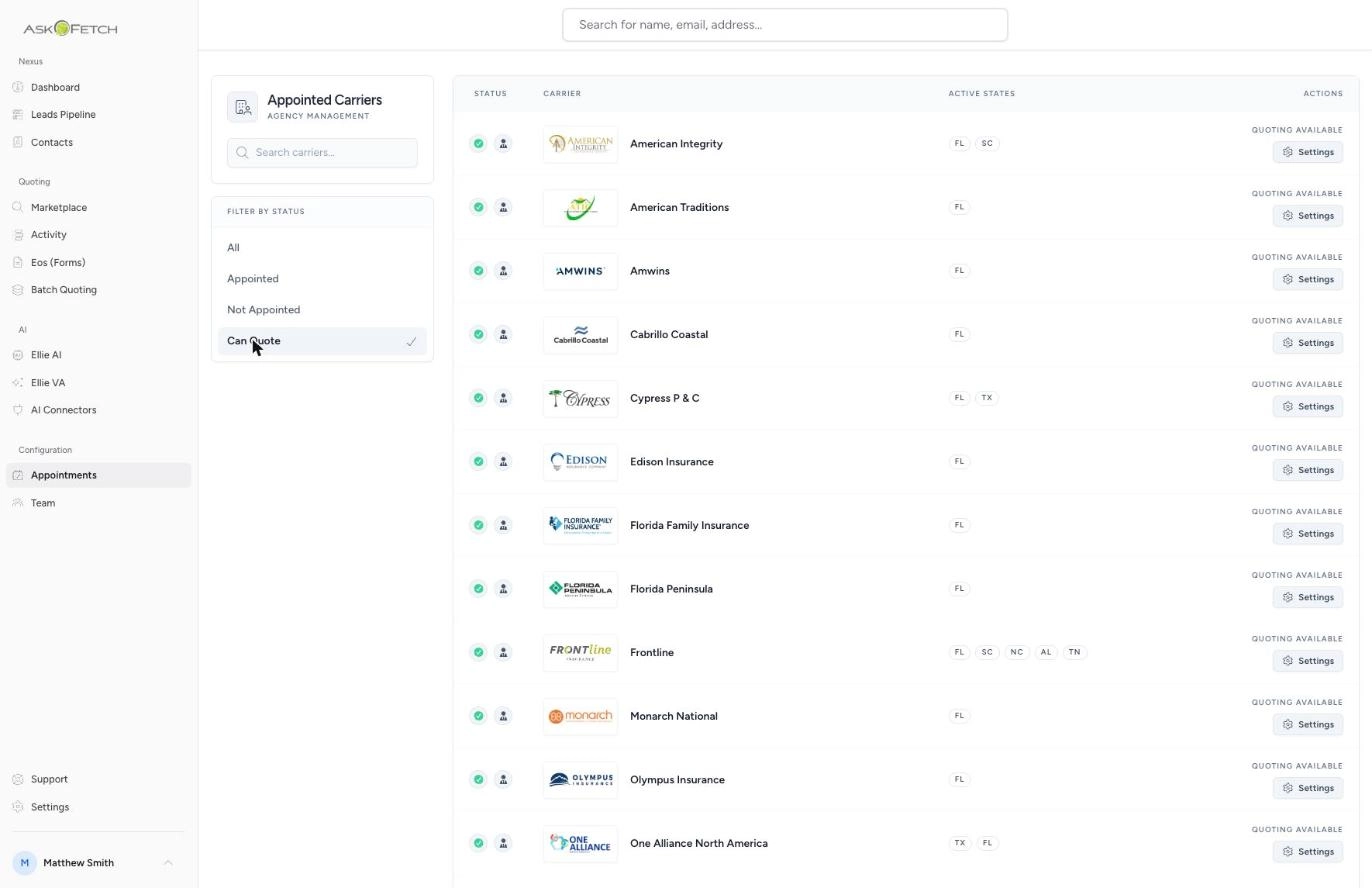
Go back to the Appointments page.
Open the Filter by status list and choose Can Quote.
Find your carrier. A green check means it is ready to quote.
Find your carrier's code
Each carrier keeps your Producer Code, User ID, and Password in its own agent portal. Open the guide below and find your carrier for step-by-step screenshots.
Where to Locate User IDs and Producer Codes Per Carrier for Ask Fetch Quoting. ↗
Still seeing NA or no quote?
Check the format of the code. Match it exactly, including dashes and any letter prefix.
Confirm you filled in every field the carrier needs. A missing User ID or Password stops the quote.
On the quote, click the orange message under the carrier to see the real reason.
Still stuck? Contact Fetch support. We will set it up with you.